
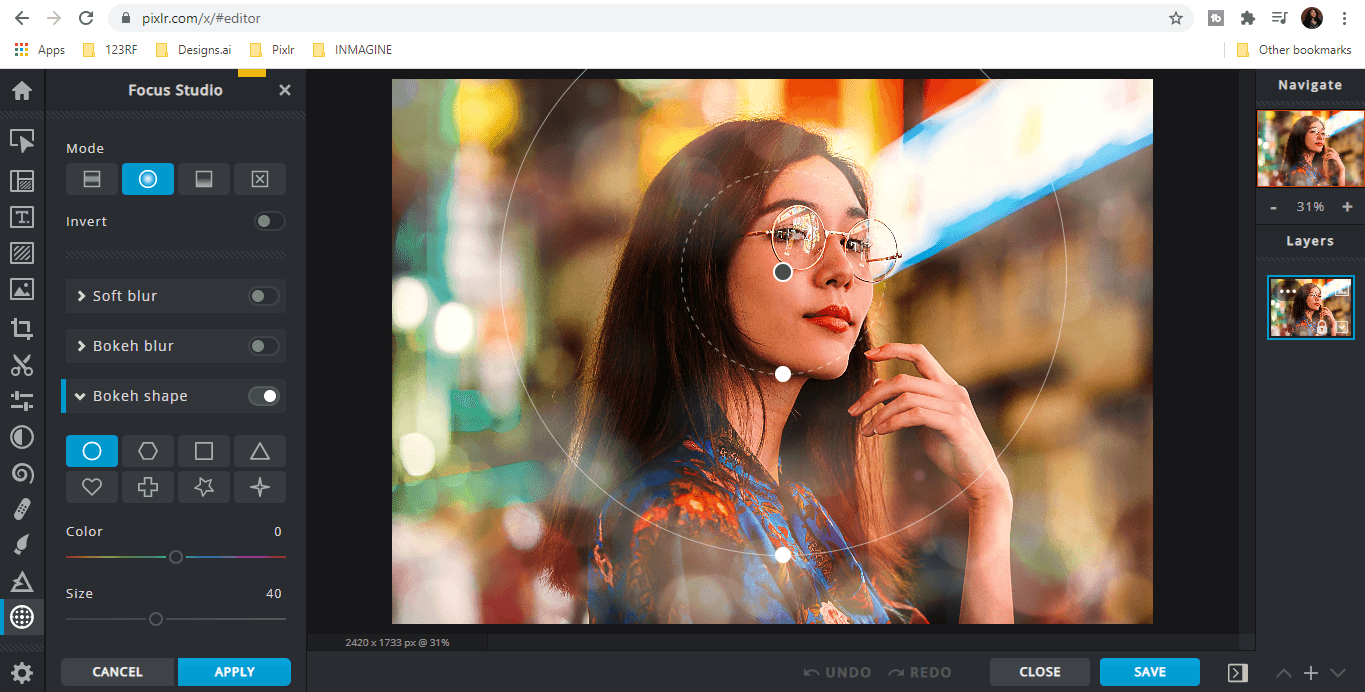
For years, Pixlr was the go-to name whenever someone typed “free photo editor” into a search bar. It ran in the browser, it looked a lot like Photoshop, and it did the job for quick edits. But 2026 tells a different story. Pixlr has steadily tightened its free tier, layered ads and watermarks over exports, capped how many AI actions you get per day, and pushed more of its genuinely useful features behind a Premium or Team subscription.
If you have felt the pinch, you are not alone: a widely cited 2026 usability study found that editors who ran into ad interruptions or watermarked downloads were roughly three times more likely to abandon a tool within two months.
The good news is that the market has never been richer. Whether you want a full-blown AI content studio, a distraction-free layer editor, or a simple free online photo editor for cropping and color correction, there is a Pixlr alternative built for exactly your workflow.
In this guide we compare the nine best Pixlr alternatives in 2026, explain how we chose them, and break each one down with clear pros, cons, and the latest pricing so you can pick with confidence. We lead with Pixara.ai, which we rate as the single best Pixlr alternative this year, and then work through eight more tools spanning free, freemium, and open-source options.
How We Chose the Best Pixlr Alternatives: Our Methodology
“Best” means nothing without a rubric, so before we ranked anything we defined what actually matters when you are replacing Pixlr. Every tool on this list was evaluated against the same six criteria, weighted toward the pain points that push people away from Pixlr in the first place.
Free-tier quality and honesty. The number one reason people search for Pixlr alternatives is that the free experience has degraded. We scored each tool on how usable it is without paying: are exports watermarked, are there ad interruptions, are AI features locked out entirely, and are there hidden daily caps? Tools that offer a genuinely useful free online photo editor experience scored higher than those that treat “free” as a demo.
Feature depth and AI capability. In 2026, editing is no longer just sliders and brushes. We looked at layer support, masking, retouching, background removal, generative fill, upscaling, and text-to-image generation. A tool that only crops and filters cannot seriously replace a modern editor, so depth counted heavily.
Accessibility and platform. Pixlr won fans because it needed no install. We rewarded any browser-based image editing tool that runs on Windows, Mac, and Chromebook without downloads, while still recognizing the raw power of desktop software for users who want it. Cross-device continuity and cloud projects were a plus.
Ease of use versus learning curve. A beginner and a retoucher need different things. We assessed how quickly a newcomer can produce a good result and how far a power user can push the tool, then noted which audience each option truly serves.
Pricing and value. We compared the latest 2026 plans, looked for predatory watermark-removal fees, and judged whether paid tiers deliver enough to justify the cost. Transparent, fair pricing scored well; credit systems that quietly cap you did not.
Output quality and workflow fit. Finally, we tested the thing that matters most: do the exports look professional, and does the tool slot into a real workflow, whether that is e-commerce product shots, social content, or marketing design? We favored tools that support non-destructive photo editing online so your original file is never permanently altered.
Every product below was assessed on all six. Where a tool clearly wins a category — free layer editing, template design, e-commerce backgrounds — we call it out so you can match the pick to your needs rather than chasing a single “best.”
1. Pixara.ai — The Best Pixlr Alternative in 2026

Overview
Pixara.ai is our top pick, and it earns the spot by rethinking what a photo editor should be in the age of generative AI. Rather than shipping yet another slider panel, Pixara positions itself as a one-stop AI content creation platform that brings together the best image and video models, AI voiceovers, and a built-in editor under a single login.
Where Pixlr asks you to make do with a shrinking toolbox, Pixara hands you a studio. It runs entirely in the browser, so there is nothing to install, and it aggregates more than thirty leading AI models — including Google Nano Banana Pro, Midjourney, FLUX 2 Pro, and ByteDance Seedream 4.5 for images, plus Sora 2, Kling 3.0, and Google Veo 3.1 for video — that would otherwise cost a small fortune to access separately.
Key Features
Pixara covers the full creative loop. On the image side you get text-to-image generation, an Edit Image tool for refining and modifying existing shots, an AI upscaler that sharpens and enlarges without artifacts, outpainting to resize and reframe scenes, precise text removal, artistic AI filters, image-to-image transformation, and studio-quality professional headshot generation.
Because edits are applied through AI passes rather than baked into your source, the workflow supports non-destructive photo editing online — you can iterate on a concept without ever losing the original. On top of imagery, Pixara layers in image-to-video and text-to-video generation, AI voiceovers, a stock library of more than three million photos and videos, and an integrated video editor, making it far more than a simple free online photo editor.
For creators who currently juggle five subscriptions, that consolidation alone is a compelling reason to switch.
Pros
The standout advantage is breadth without complexity: you get access to premium, cutting-edge models through one friendly interface, so you are always editing with the latest technology instead of whatever a single vendor built in-house.
Outputs are watermark-free on every paid plan, the learning curve is gentle for non-technical users, and having images, video, voiceovers, and editing in one hub removes an enormous amount of tool-switching friction. The credit allowances are generous relative to standalone AI generators, and higher tiers unlock effectively unlimited use of flagship models.
Cons
Pixara is AI-first, so if all you want is to crop a photo and nudge the brightness, it can feel like more platform than you need. It is not a manual, pixel-level layer editor in the Photoshop tradition, and there is no permanently free forever plan — you work from trial credits and then choose a subscription. Power users who want granular curve and channel control may still keep a dedicated editor alongside it.
Pricing (Latest 2026)
Pixara offers four tiers, all with watermark-free output and access to the shared model library. The Starter plan is $10/month billed annually and includes 4,000 credits per month. Hobby runs $15/month (down from $25) with 15,000 credits and a year of unlimited access to Nano Banana and Seedream 4.0. The most popular Pro plan is $24/month (down from $60) with 36,000 credits and unlimited access to a wider model set including Midjourney, Runway 4, Reve Edit, and Kling O1. The top-end Ultimate plan is $100/month with 150,000 credits and unlimited access to the newest flagship models. New users can explore the platform with trial credits before committing.
2. Photopea — The Best Free Photoshop-Style Editor

Overview
If your main frustration with Pixlr is the disappearing free tier, Photopea is the most direct fix. It is a browser-based image editing tool that recreates the Photoshop interface almost panel for panel, and it does so with no downloads, no account requirement, and no export caps. It even opens and saves native PSD files, which makes it invaluable for anyone who receives layered files from designers but does not want an Adobe subscription. For students, freelancers, and anyone who learned on Photoshop, the muscle memory transfers instantly.
Key Features
Photopea offers full layer support, layer masks, blend modes, adjustment layers, the pen tool, smart objects, and a deep filter set — the kind of professional toolkit that most free editors simply do not attempt. Crucially, its adjustment layers and masks enable true non-destructive photo editing online, so you can rework an image endlessly without degrading the source. It reads and writes PSD, XCF, Sketch, XD, and PDF files, and includes a growing set of AI-assisted helpers. Because everything runs client-side in your browser, your files never have to leave your machine, which is a genuine privacy advantage.
Pros
The biggest win is that a serious, layer-based editor is available at no cost with no watermarks and no export limits. PSD compatibility makes it the obvious Photoshop alternative free of a monthly bill, and the familiar layout means there is almost no learning curve for former Photoshop users. It works on any operating system, including Chromebooks, and loads in seconds.
Cons
The free version is ad-supported, and while the ads are unobtrusive, they are present. The Photoshop-style interface, though a strength for veterans, can overwhelm complete beginners who just want a one-click fix. Its AI generation tools are lighter than dedicated AI platforms like Pixara, and complex files can lean on your device’s memory since processing happens locally.
Pricing (Latest 2026)
Photopea is free forever with every editing feature unlocked. An optional Premium subscription of around $5 per month (billed annually) removes ads and raises the history-state count. There is no watermark and no paywall on exports at any tier, which is exactly what makes it such a beloved free online photo editor.
3. Canva — The Best Template-First Design Tool

Overview
Canva approaches the problem from the opposite direction to Photopea. Instead of a blank canvas and pro-grade tools, it hands you a vast library of professionally designed templates and makes assembling polished graphics almost effortless. That makes it the ideal Pixlr alternative for social media managers, marketers, small-business owners, and anyone who values speed and consistency over pixel-level control. It has grown into a complete online graphic design software suite that happens to include solid photo editing.
Key Features
Canva ships with more than a million templates, a drag-and-drop editor, brand kits, a huge stock library, and a growing set of AI tools under its Magic Studio banner — Magic Edit, background removal, Magic Eraser, text-to-image, and one-click resizing across formats. Its photo editing covers the essentials (crop, filters, adjustments, retouch) and increasingly the advanced (AI object removal and replacement). Real-time collaboration, comments, and shared brand controls make it a genuine team platform rather than a solo tool, and everything syncs across web, desktop, and mobile.
Pros
The template-first model means even non-designers produce sharp results fast, and the free plan is genuinely generous. As online graphic design software it is unmatched for turning around social posts, presentations, and marketing assets quickly, and the collaboration features are excellent for teams. Background removal and other AI tools work reliably, and the ecosystem of printing, scheduling, and content planning is deep.
Cons
Canva is a designer of layouts more than a precision photo retoucher; if you need fine masking or channel-level control it will feel limiting. The best templates, assets, and AI features live behind Pro, and the sheer number of options can be paralyzing. Heavy template reliance can also make output look generic if you do not customize.
Pricing (Latest 2026)
Canva Free is permanent and includes 1.6 million-plus templates, 5 GB storage, and a limited monthly allowance of premium AI uses. Canva Pro is $18/month or $144/year (roughly $12/month annually) with 141 million-plus premium assets, 100 GB storage, brand kits, and 200 premium AI uses monthly, plus a 30-day trial. Canva Business runs $25 per user/month for teams needing shared brand controls and approval workflows. Frequent promotions often discount the paid tiers for new customers.
4. Fotor — The Best One-Click Enhancement Tool

Overview
Fotor sits comfortably between simple and powerful. It is designed for people who want their photos to look better immediately without learning a complicated interface, and its one-click enhancement is genuinely good at fixing exposure, color, and sharpness in a single tap. It runs in the browser and as apps, and it blends photo correction with a light layer of design templates, making it a versatile everyday free online photo editor for casual creators and content marketers alike.
Key Features
Fotor’s core strength is automated enhancement: one-click adjustments, AI-powered background removal, object removal, portrait retouching, and a strong set of filters and effects. It layers in AI image generation, an upscaler, and a batch-processing tool for handling many photos at once. On the design side it includes templates for social posts, collages, and marketing graphics, so it doubles as light online graphic design software. Edits can be stacked and reversed easily, giving you flexible, non-destructive photo editing online for everyday touch-ups.
Pros
The speed-to-good-result ratio is excellent; beginners get professional-looking edits with almost no effort. AI tools like background and object removal work well, batch processing saves real time for high-volume editors, and the interface stays approachable throughout. It bridges photo editing and basic design in one place.
Cons
The free tier applies watermarks and gates many AI features and premium assets behind Pro. Compared with a dedicated layer editor, manual control is limited, and occasional performance slowdowns crop up with large batches. Power users will outgrow it faster than casual creators.
Pricing (Latest 2026)
Fotor offers a free plan with watermarked exports and limited features. Fotor Pro is around $8.99/month (cheaper billed annually) and removes watermarks, unlocks premium content, and expands AI credits, while a Pro+ tier adds higher generation limits for heavy users. The value is solid for the price bracket, especially for creators who lean on one-click enhancement.
5. Adobe Express — The Best Choice for the Adobe Ecosystem

Overview
Adobe Express is Adobe’s answer to Canva and, by extension, a strong Pixlr replacement for anyone already inside the Adobe world. It pairs approachable, template-driven design with the Firefly generative AI engine and integrates tightly with Photoshop, Illustrator, Adobe Fonts, and Creative Cloud libraries. If you already pay for Creative Cloud, much of Express comes at no extra cost, which makes it an easy add to your workflow.
Key Features
Express combines quick-design templates with genuinely powerful AI: Firefly-powered text-to-image, generative fill, background removal, and text effects, all trained on commercially safe data. It offers strong typography thanks to Adobe Fonts, brand kits, content scheduling for social channels, and one-tap resizing. Assets flow between Express and the full Adobe apps, so you can start something quick and finish it in Photoshop. For users who want a capable, browser-based image editing tool without opening the heavyweight desktop suite, it hits a sweet spot.
Pros
Firefly integration makes the AI features best-in-class for commercial safety, and the Adobe Fonts and Creative Cloud connections are a real advantage for existing subscribers. The free tier is capable, the templates are polished, and the design-plus-AI blend is well executed. It is a natural bridge for people who will eventually graduate to full Photoshop.
Cons
Outside the Adobe ecosystem, the pull toward other paid Adobe products can feel like upselling. Some advanced features assume familiarity with Adobe conventions, and the standalone value is weaker if you never touch Creative Cloud. Occasional feature overlap with Photoshop can be confusing for newcomers.
Pricing (Latest 2026)
Adobe Express has a free plan with a meaningful set of templates and basic AI. The Premium plan is about $9.99/month and unlocks the full template and asset library, expanded Firefly generative credits, premium fonts, and brand tools. Creative Cloud subscribers frequently receive Express Premium bundled at no extra charge, which is where its value is strongest.
6. Photoroom — The Best for E-Commerce Product Photos

Overview
Photoroom has carved out a specific and highly valuable niche: making product photos look studio-quality in seconds. For online sellers, marketplace vendors, and social commerce creators, it is arguably the most useful Pixlr alternative on this list because it automates the exact task they repeat hundreds of times — removing a background and dropping the product onto a clean, professional scene. It runs in the browser and on mobile, so you can shoot and edit from a phone.
Key Features
Photoroom’s AI background removal is among the most accurate available, and it goes further with AI Product Staging, Virtual Models, instant shadows, and batch editing that processes entire catalogs at once. It offers templates sized for every marketplace and social platform, HD exports, and direct publishing to stores like Shopify on higher tiers. Because you work on layers over the original cutout, it supports non-destructive photo editing online, letting you swap backgrounds and scenes without touching the source shot. This is a purpose-built commerce studio, not a general editor.
Pros
For e-commerce, the time savings are enormous; what used to require a photographer and a light box now takes seconds. Background removal quality is excellent, batch processing scales to large catalogs, and marketplace-ready templates remove guesswork on sizing. The mobile app makes on-the-go editing genuinely practical.
Cons
Outside product photography, Photoroom is less versatile than a general-purpose editor. The free plan watermarks exports and blocks commercial use, and the most useful AI features and batch limits require a paid plan. Creative, non-commerce users will find it narrow.
Pricing (Latest 2026)
Photoroom’s free plan allows 250 watermarked exports per month with limited AI and no commercial use. Pro starts around $7.50/month billed annually with unlimited manual exports, 500 batch exports monthly, advanced AI, HD output, and commercial rights. The Max plan is about $20.99/month with higher batch limits, better AI models, and Shopify publishing, while Ultra and Enterprise tiers serve high-volume sellers.
7. Picsart — The Best for Social and Mobile Creators

Overview
Picsart is built for the social-first creator who lives on their phone and wants trendy, eye-catching edits fast. It combines a deep photo editor, a video editor, and a giant library of stickers, effects, and community-made content, all wrapped in an interface tuned for Instagram, TikTok, and YouTube output. As a Pixlr alternative it wins on creative range and mobile polish, and its AI toolkit has expanded aggressively in 2026.
Key Features
Picsart packs AI image generation, background removal, AI enhance and upscaling, generative expand and replace, a massive sticker and template collection, and a full suite of retouching tools. Its video editor handles short-form content with effects and transitions, and the AI Avatar and style tools cater to trend-driven creators. Available on web and as strong mobile apps, it is a flexible browser-based image editing tool that follows you across devices, with cloud projects keeping everything in sync.
Pros
The creative library is unmatched for social content, mobile apps are genuinely powerful rather than stripped-down, and the AI features are broad and constantly updated. It handles both photo and video, which few competitors do well, and the community content keeps the tool feeling fresh.
Cons
The free tier is limited and increasingly nudges you toward a subscription, and the abundance of effects can encourage over-editing. AI features run on a credit allowance that resets monthly, so heavy users can hit caps, and the interface can feel cluttered to those who want a clean editor.
Pricing (Latest 2026)
Picsart offers a limited free plan. Picsart Pro is around $10.50/month billed annually with 500 AI credits monthly and watermark-free exports. The Ultra plan runs about $31.66/month annually (or $45 monthly) with 1,500 credits and team seat options. Because AI features draw from the monthly credit pool, buyers should match the tier to their generation volume.
8. BeFunky — The Best for Collages and Quick Touch-Ups

Overview
BeFunky is the friendliest tool on this list. It focuses on doing a few things exceptionally well — collages, quick photo touch-ups, and easy graphic design — without ever overwhelming the user. If Pixlr felt like too much and you just want to combine a few photos, apply a tasteful effect, or clean up a portrait, BeFunky is a delightful, low-stress free online photo editor that gets you there in minutes.
Key Features
BeFunky’s collage maker is one of the best available, with flexible layouts and drag-and-drop simplicity. Its photo editor covers one-tap enhancement, retouching, AI background removal, artistic effects, and a large filter library, while the Graphic Designer module adds templates for social posts and marketing assets, making it light online graphic design software as well. Everything runs in the browser with a clean, uncluttered interface, and edits can be adjusted and undone freely.
Pros
It is arguably the fastest way to make a good collage, the interface is calm and beginner-friendly, and the artistic effects are genuinely attractive. The free tier is usable for casual needs, and the blend of editing, collage, and design in one clean workspace suits hobbyists and social creators perfectly.
Cons
Serious retouchers will find it shallow; there is no deep layer or masking system to speak of. Many effects, templates, and AI tools require the Plus subscription, and it lacks the advanced AI breadth of platforms like Pixara or Picsart. It is built for ease, not for professional depth.
Pricing (Latest 2026)
BeFunky has a free plan with core editing and collage tools. BeFunky Plus is around $9.99/month, or roughly $5.83/month billed annually, and unlocks all effects, templates, advanced tools, and premium content. For the casual creator, the annual price is one of the better values in this category.
9. GIMP — The Best Free Desktop Editor for Power Users

Overview
GIMP (the GNU Image Manipulation Program) is the veteran open-source heavyweight and the definitive Photoshop alternative free of any cost whatsoever. It is desktop software rather than a web app, and it rewards the patient user with professional-grade capabilities that exceed Pixlr in nearly every technical dimension. For power users who are comfortable with a steeper learning curve and want total control with zero subscription, nothing else on this list matches its depth-for-price.
Key Features
GIMP delivers full layer and mask support, advanced selection tools, customizable brushes, channel and curve control, scripting and automation, and a vast plugin ecosystem that extends it toward RAW processing, AI enhancements, and specialized filters. Its non-destructive workflows — layer masks, adjustment techniques, and smart use of layers — enable serious non-destructive photo editing online-quality results entirely offline. It handles high-resolution files, supports a wide range of formats, and runs on Windows, macOS, and Linux.
Pros
It is completely free with no usage limits, no watermarks, and no ads, and it is genuinely powerful enough for professional retouching, compositing, and design. The open-source community means constant development and a huge library of tutorials and plugins. As a Photoshop alternative free from any subscription, it is unbeatable on value.
Cons
The learning curve is steep, and the interface feels dated and less intuitive than modern web tools. It requires installation and reasonable hardware, lacks the polished cloud collaboration of Canva or Pixara, and its AI features depend on third-party plugins rather than being built in. Casual users may find it intimidating.
Pricing (Latest 2026)
GIMP is 100% free and open-source, forever, on every platform. There are no paid tiers, no watermarks, and no export caps — donations to the project are welcome but never required.
Why Pixara.ai Stands Out as the Best Pixlr Alternative
Every tool on this list beats Pixlr in its lane, but Pixara.ai wins the overall crown because it answers the question most editors are really asking in 2026: how do I create more, faster, without paying for five different tools?
Photopea and GIMP are the champions of free manual editing, Canva and Adobe Express own template design, Photoroom dominates e-commerce, and Picsart and BeFunky nail social and casual creation.
Pixara, by contrast, folds image generation and editing, video creation, voiceovers, a huge stock library, and a built-in editor into one platform powered by more than thirty of the best AI models available. That consolidation, combined with watermark-free output and fair, credit-based pricing, is why it tops our ranking of the best Pixlr alternatives this year.
If your work has shifted from tweaking existing photos toward creating original visual and video content, Pixara is the clearest upgrade path away from Pixlr.
Final Thoughts
Pixlr is no longer the automatic choice it once was, but that is good news, because the alternatives in 2026 are dramatically better than what Pixlr took away. The right pick depends entirely on what you make. Choose Photopea or GIMP if you want serious editing at zero cost, Canva or Adobe Express for fast template-driven design, Photoroom for product photography, Picsart or BeFunky for social and casual creativity, and Fotor for effortless one-click enhancement. But if you want a single platform that carries you from idea to finished image and video with the best AI models on the market, Pixara.ai is the best Pixlr alternative in 2026 — and the easiest way to future-proof your creative workflow. Try a couple that fit your use case, and you will wonder why you waited so long to leave Pixlr behind.